
Sampling & Capturing
Sample any pixel into your clipboard, capture pixel-perfect cropped element screenshots, and inspect HTML5 canvas elements that DevTools can’t reach.
Color Picker
The Color Picker is Screen Ruler’s built-in eyedropper. Click the button and the browser’s native colour-sampling overlay opens; click any pixel on the page and the colour auto-copies to your clipboard in the format of your choice.
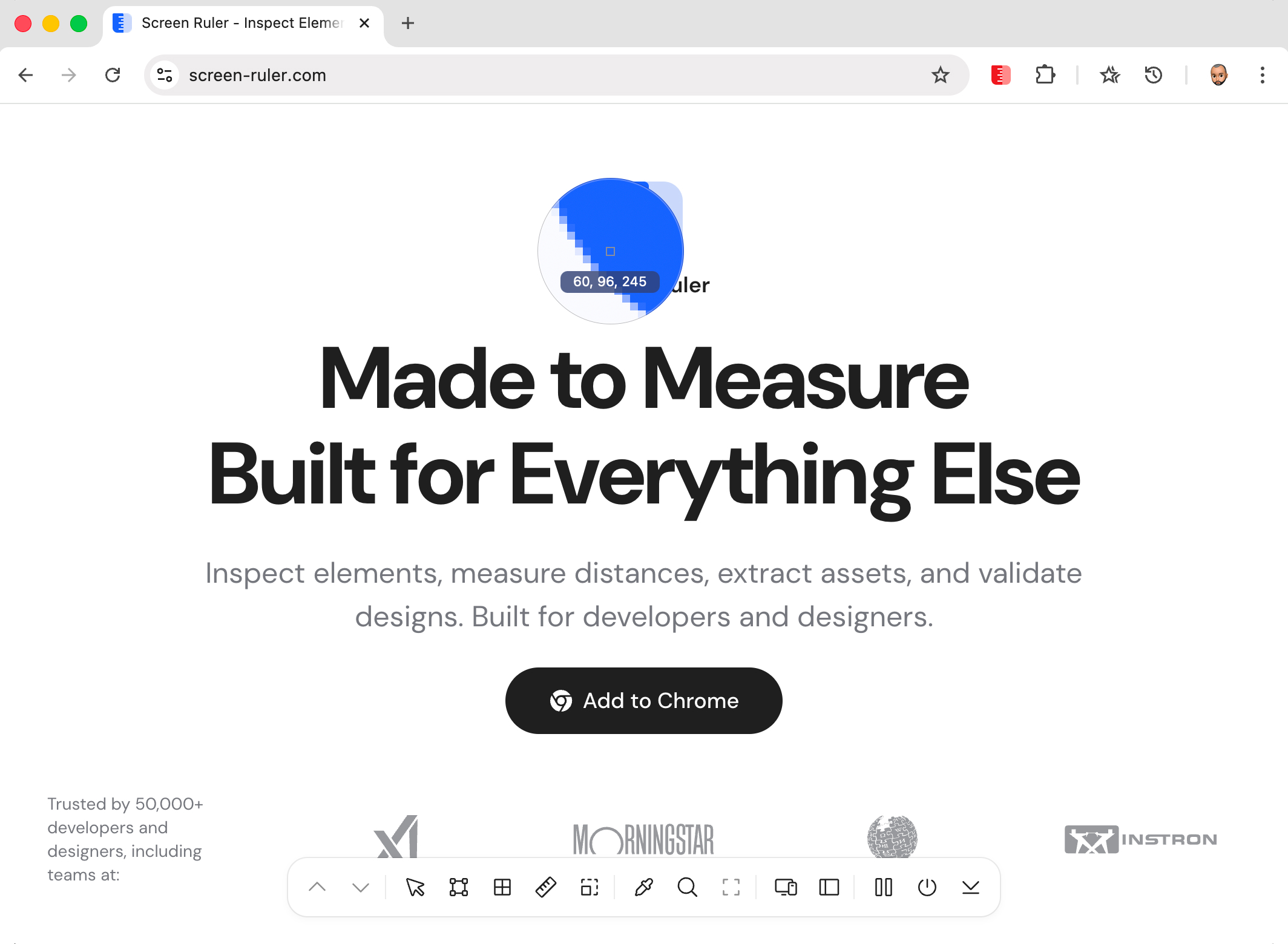
It runs on top of the native browser EyeDropper API, which means the colour returned is system-accurate (read straight off the rendered pixel) rather than approximated from a canvas snapshot. The sampled value comes back as sRGBHex, gets formatted into your chosen output, and is written to the clipboard via navigator.clipboard.writeText().
Supported output formats: HEX, RGB / RGBA, HSL / HSLA, HSB / HSBA. The format setting persists across sessions.
Element Screenshots
Capture a cropped image of the element you’re inspecting instead of taking a full-page screenshot you have to crop yourself. Click the screenshot button while an element is selected and Screen Ruler computes a tight bounding rectangle around it, hides its own UI, captures the visible tab via chrome.tabs.captureVisibleTab(), then crops and downloads a PNG.
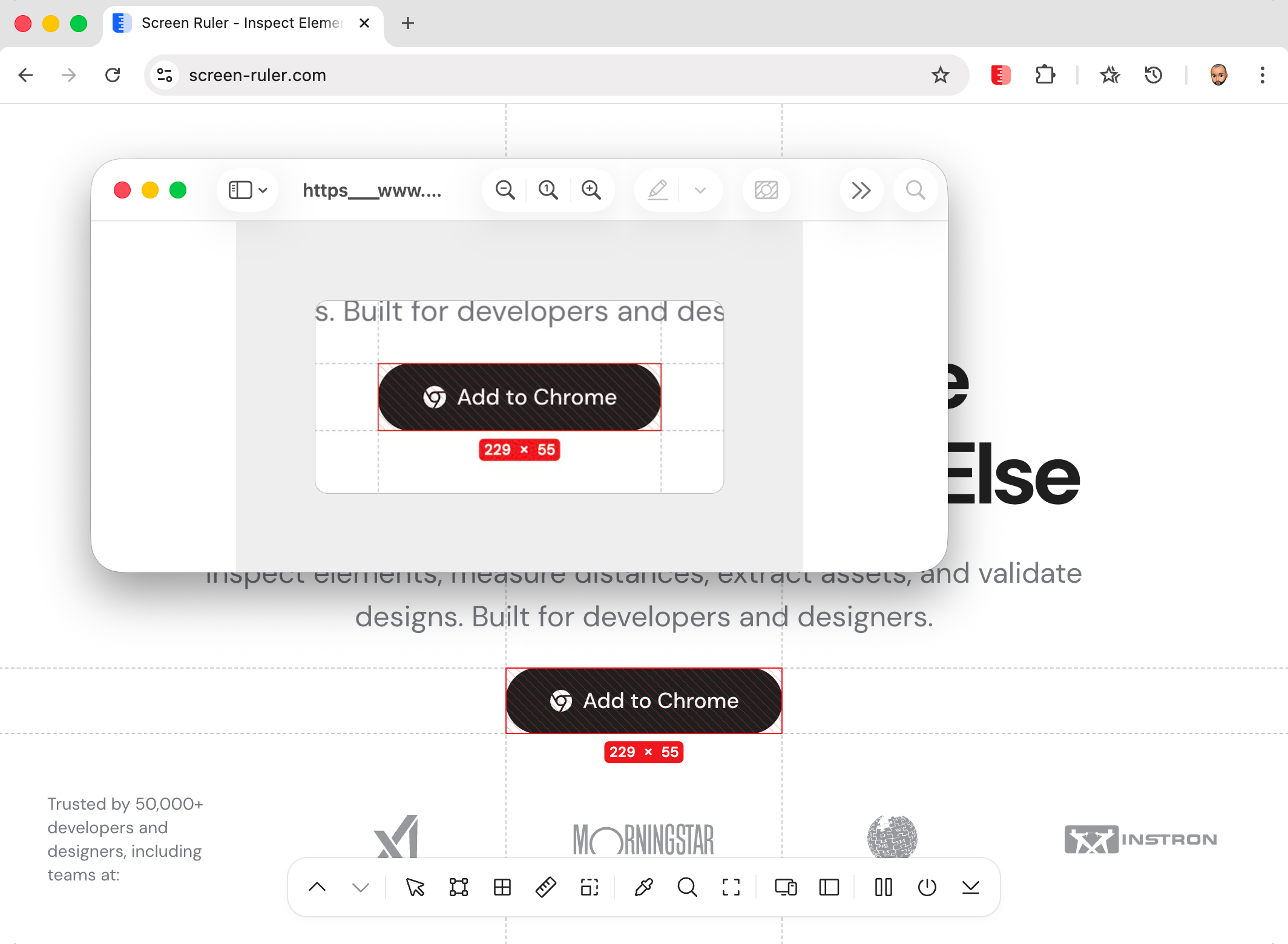
The bounding rect is calculated from getBoundingClientRect() values for the element, plus any visible tag labels and margin/padding box overlays. A 50 pixel buffer is added on every side so the element doesn’t bleed against the image edge. All coordinates are scaled by window.devicePixelRatio so the crop is exact on Retina and other high-density displays.
What ends up in the image: the element itself with margins/padding overlays if you have them visible, plus the element tag label if shown. What never ends up in the image: the Screen Ruler control bar, the side panel, popovers, or any other extension chrome: those are hidden via CSS for the duration of the capture and restored immediately afterwards.
Canvas Inspection
Canvas elements are usually opaque to inspection: a <canvas> tag in the DOM tells you nothing about whether it’s a 2D drawing, a WebGL scene, or a chart, and it certainly doesn’t tell you what colours are being drawn. Canvas Inspection probes the element directly. It calls getContext() across the standard context types (2d, webgl2, webgl, bitmaprenderer, experimental-webgl) until one matches.
For each canvas you see context type, dimensions (native pixel width × height), and pixel ratio (the ratio of native canvas pixels to CSS pixels, useful for diagnosing whether the canvas is set up correctly for HiDPI displays).
For 2D canvases, Screen Ruler also extracts a dominant-colour palette. A 64×64 sample of the rendered frame is read with getImageData(), colours are quantised to a 15-unit RGB grid and clustered by Euclidean distance so visually similar colours don’t fragment the palette, and you get up to 25 dominant colours ranked by occurrence. Pixel-data extraction works on same-origin canvases only; cross-origin canvases are tainted by browser CORS rules.