
Inspecting Elements
The cursor is the inspector. Hover any element to see its dimensions, padding, margins, and classes; click to lock the selection; navigate the DOM tree without ever opening DevTools.
The Ruler
With Screen Ruler active, every element under your cursor gets outlined in real time. A floating overlay surfaces the element’s tag name, exact pixel dimensions (read from getBoundingClientRect()), classes, and IDs. Padding renders as a green overlay inside the box, margin as an orange overlay outside, with values labelled per edge.
Click an element to lock the selection. The highlight persists, the side panel populates with the element’s details, and you can move your cursor away to compare without losing your place.
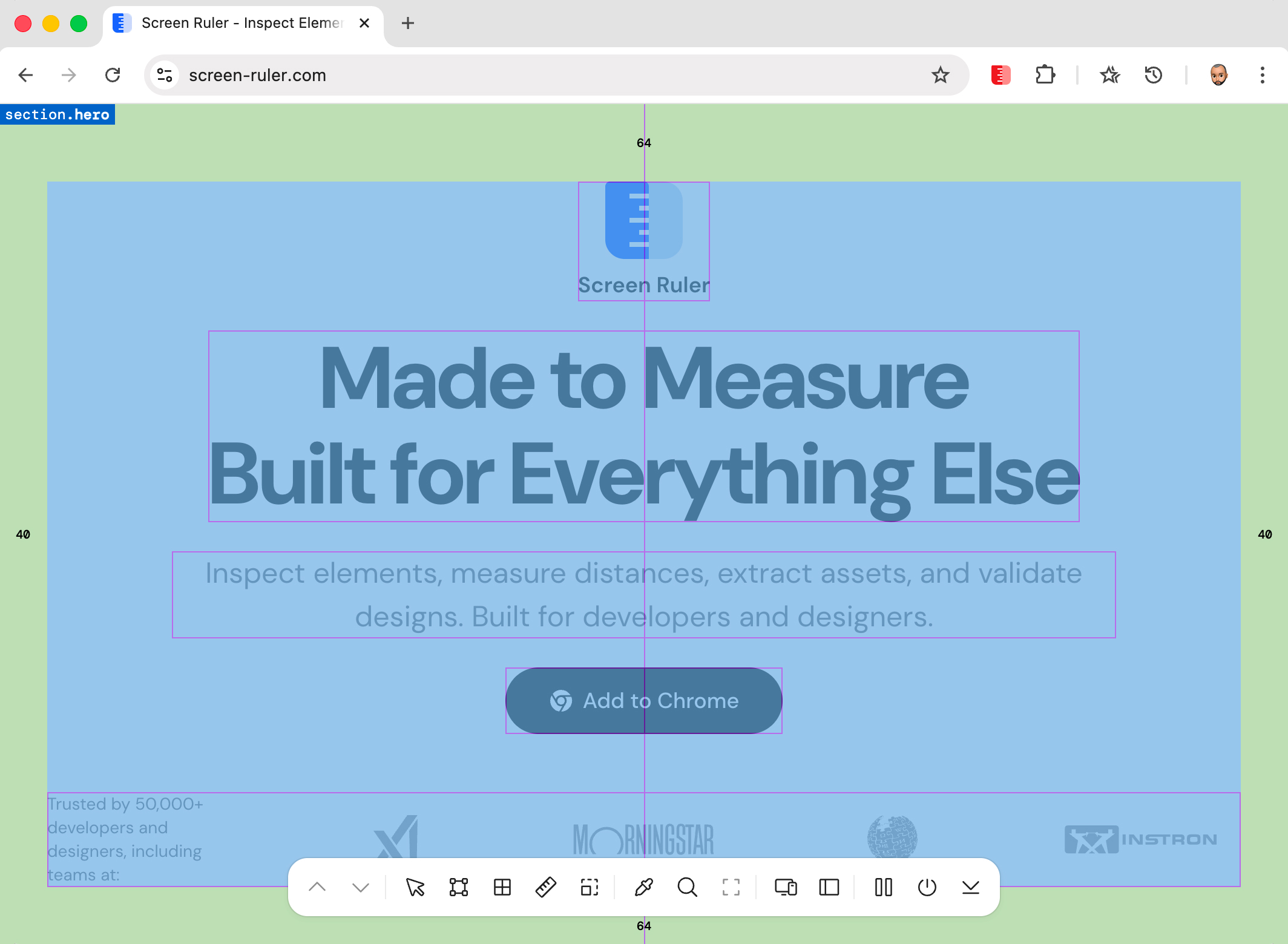
The overlay reads live computed styles, so what you see is exactly what the browser renders, including styles applied by JavaScript at runtime. It works on every element on every page, including the deeply nested children of third-party widgets you can’t easily reach through the DOM tree.
Measuring Distances
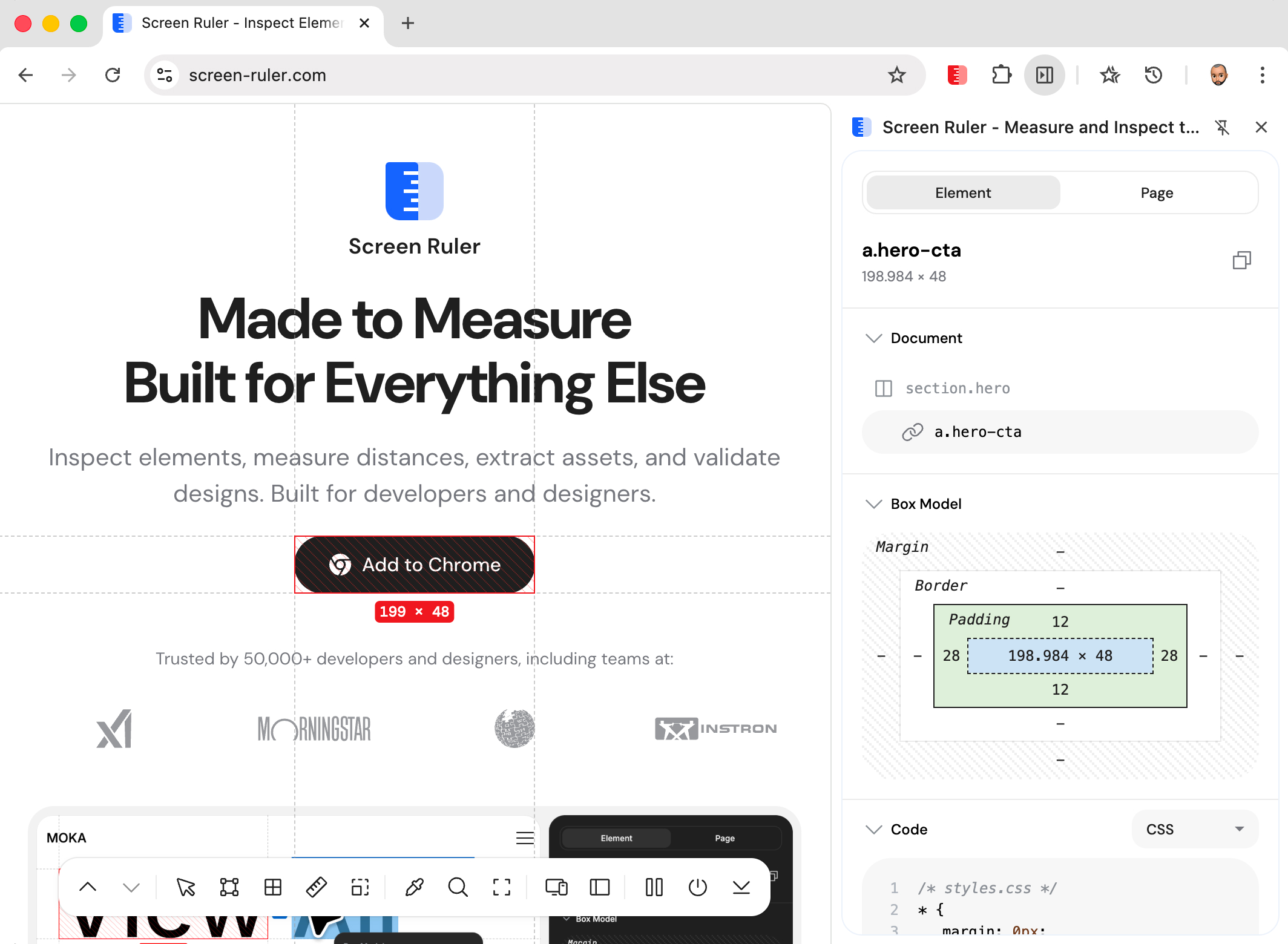
Once an element is selected, hover anywhere else on the page and distance lines appear between the two elements showing the exact pixel gap, both horizontally and vertically. This is the fastest way to verify spacing matches a design spec: select the first element, hover the second, read the number.
The measurement works whether the elements are siblings or live in completely different parts of the DOM. Aligning a header with a CTA button six sections down is the same gesture as measuring two adjacent buttons.
DOM Navigation
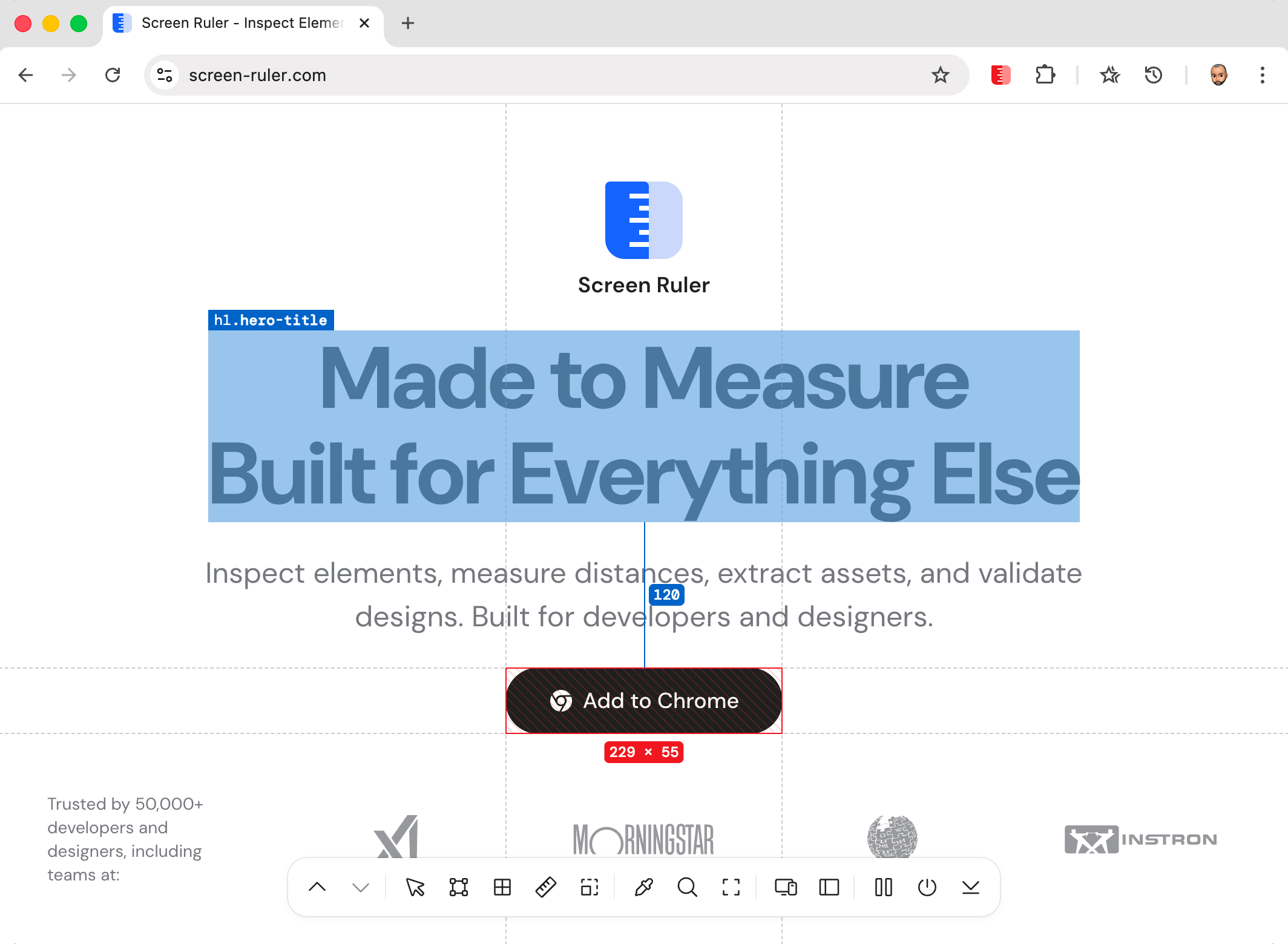
Once an element is selected, walk the DOM tree without leaving the page. Press Option/Alt + ↑ to step up to the parent. Press Option/Alt + ↓ to step down to the first child. The selection updates instantly, and the side panel along with all overlays update with it.
This is especially useful when the element you actually care about is a wrapper, but the click target is its child: click the visible thing, then arrow up until you land on the right ancestor.
Floating Inspector
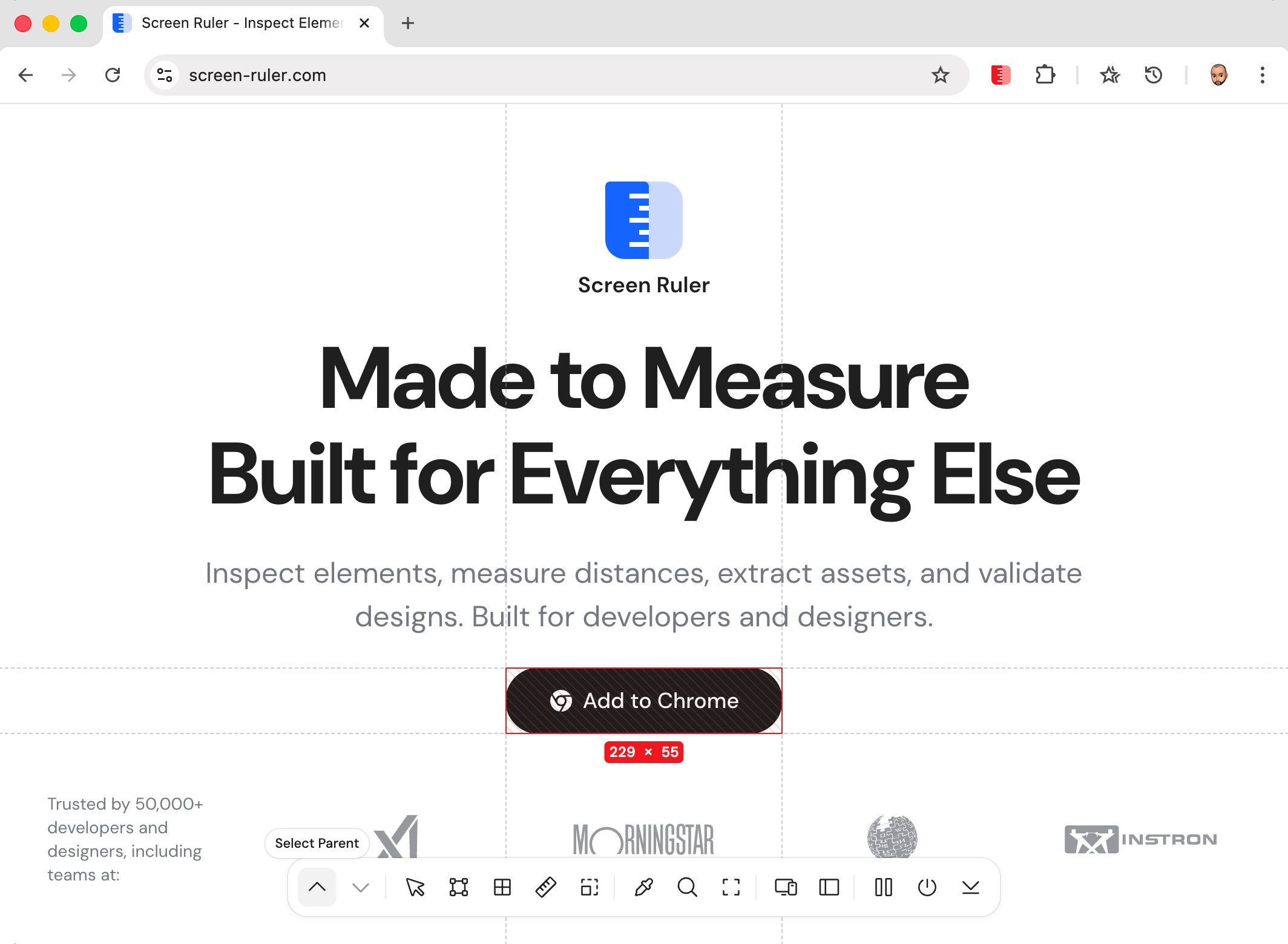
The floating inspector is a compact overlay that follows your cursor while the ruler is active, showing categorised CSS details pulled from window.getComputedStyle() without opening the side panel. It’s the right tool when you want details quickly and the side panel feels heavyweight.
Properties are grouped into four sections: Layout (display, position, width, height, margin, padding, z-index), Appearance (color, background, border, opacity, box-shadow), Text (font-family, font-size, font-weight, line-height, text-align), and Visual effects (transform, filter, backdrop-filter). Default values are filtered out so you only see properties doing real work.
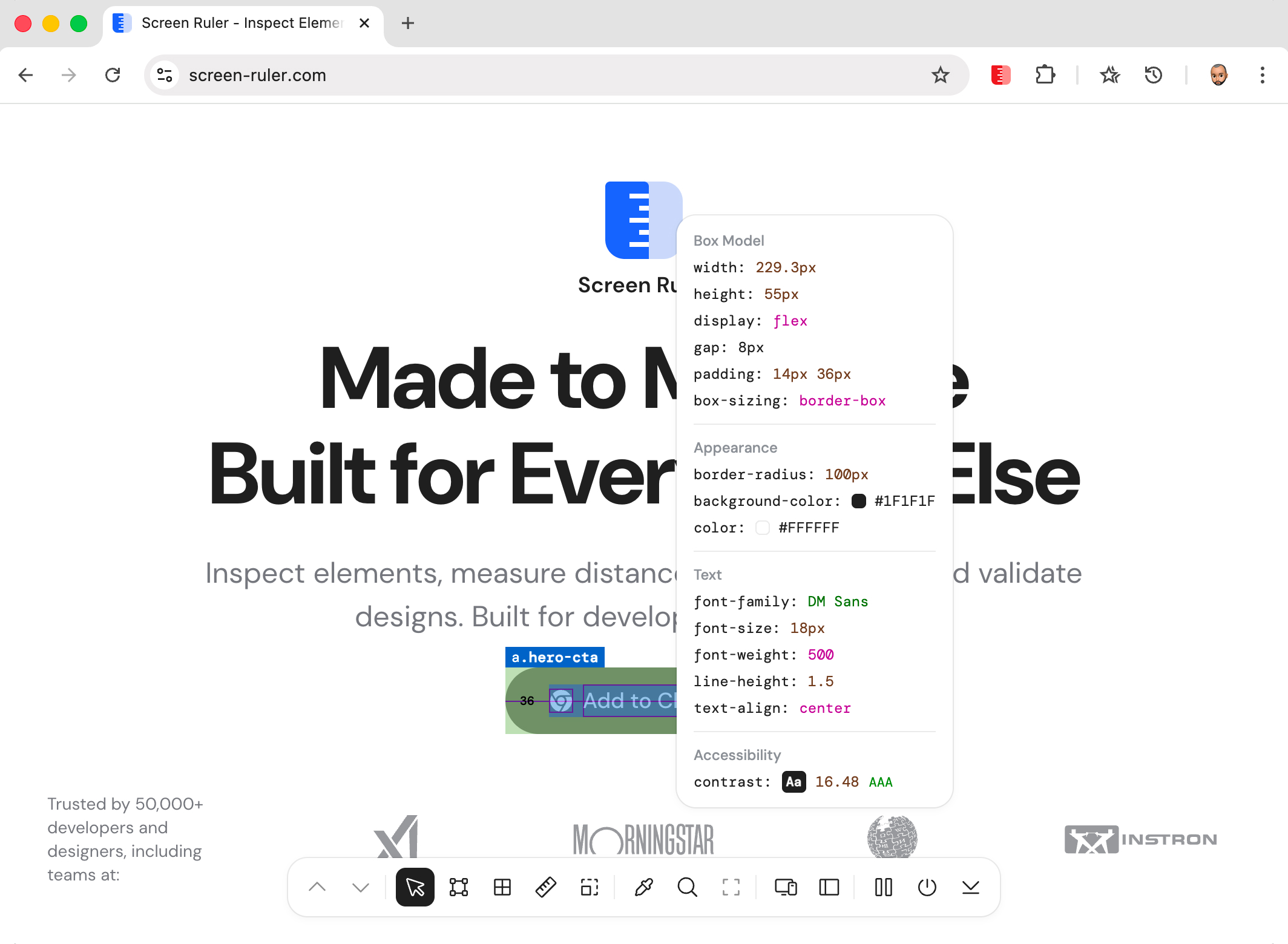
Press Space while hovering an element to pin the inspector in place. Pinned inspectors stay on screen and can be dragged around, so you can compare properties across multiple elements at once. Close a pinned inspector with the X in its title bar.
Finding Elements
Type any CSS selector into the find popover and every match on the page is highlighted instantly. The first match scrolls into view; the rest are reachable via prev/next arrow buttons that cycle through with smooth scrolling, with a counter showing your position (“3 of 17”).
Under the hood it’s the browser’s native document.querySelectorAll(), so anything that’s a valid CSS selector works: combinators, pseudo-classes, attribute matchers, the lot. Compound and nested selectors all behave as you’d expect.
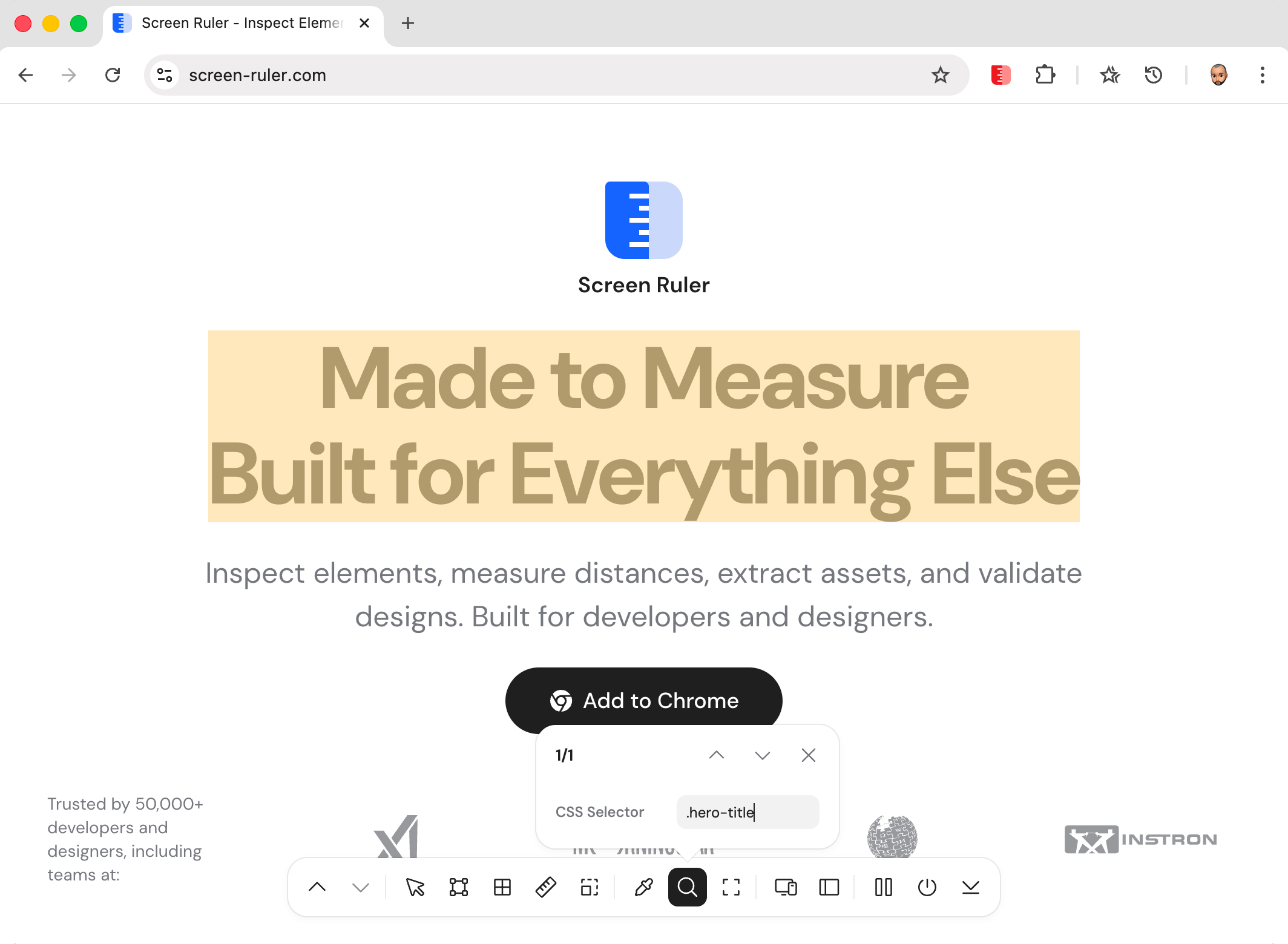
Useful for confirming a selector matches what you think it matches, finding every CTA on a long page during an audit, or verifying that a tracking attribute is present on every link.
Force Element State
Some styles only show up under specific user states like :hover, :focus, :active, and :visited. Open the state picker from the element-name header in the side panel and pick a state. The element renders in that state and the side panel updates to reflect it.
The picker only lists states that have matching rules on the selected element. Forcing is scoped to that element: rules that key off a different element's state, like a parent's hover restyling a child, aren't emulated.
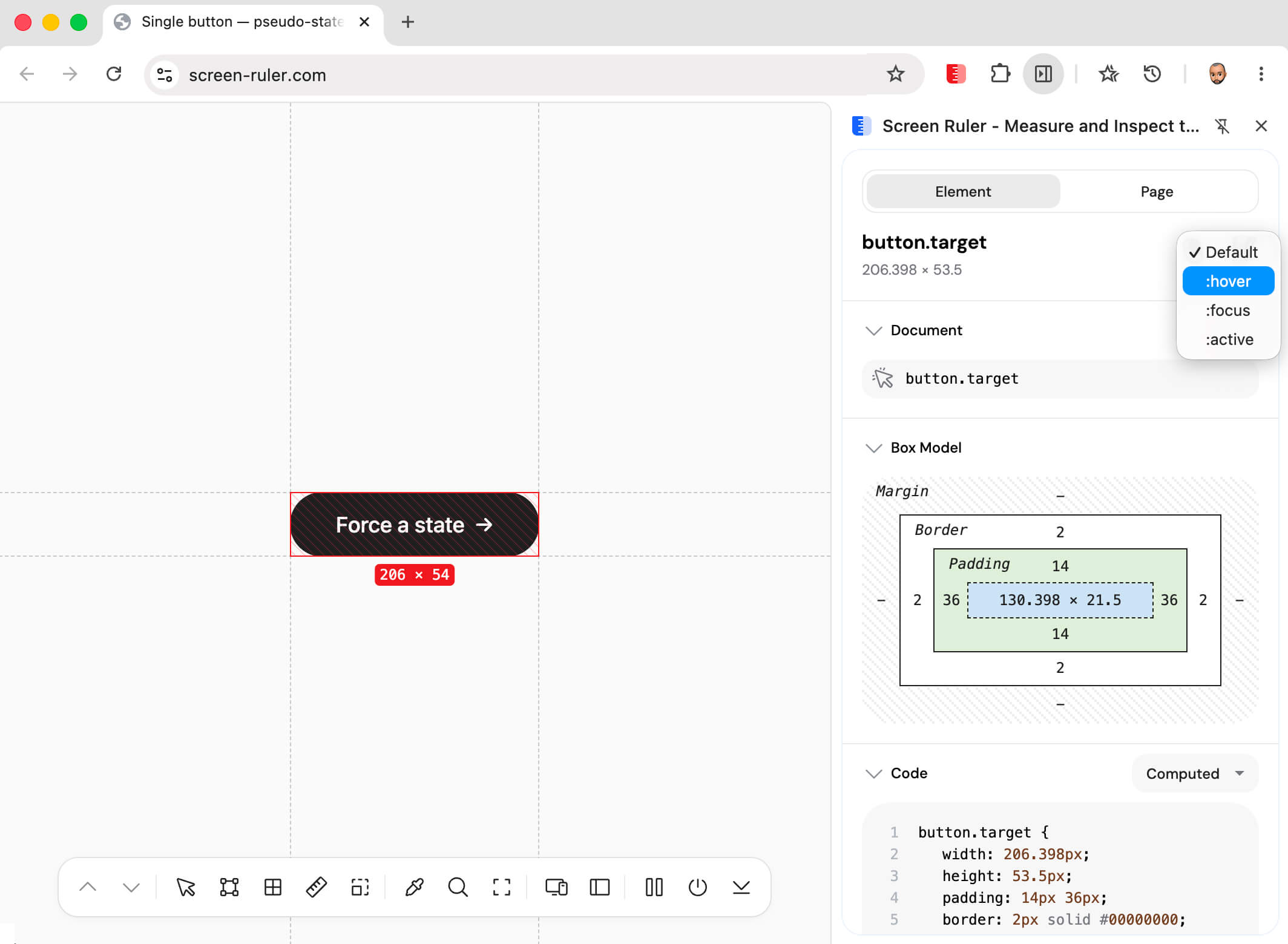
:hover on a button renders it in the hover state without needing to hover; the side panel updates to match.